Experience the solitude and serenity of the forest with this free panoramic theme forWindows 8andWindows RTdesigned to span dual monitors. Ancient beech trees in the autumn glow, redwoods wreathed in flowering rhododendron, a babbling woodland brook, all in full panoramic splendor.
Bring stunning imagery of some of the most fantastic skylines in the world to your desktop. Hong Kong, London, Vancouver, and Kuala Lumpur will span your screen in full panoramic splendor in this free theme forWindows 8andWindows RTdesigned to stretch across dual monitors.
Iconic bridges stretched across the skylines of some of the world’s most beautiful and picturesque cities—including Tokyo, Paris, and San Francisco—will expand the view on your desktop with this free panoramic theme forWindows 8andWindows RTdesigned to span dual monitors.
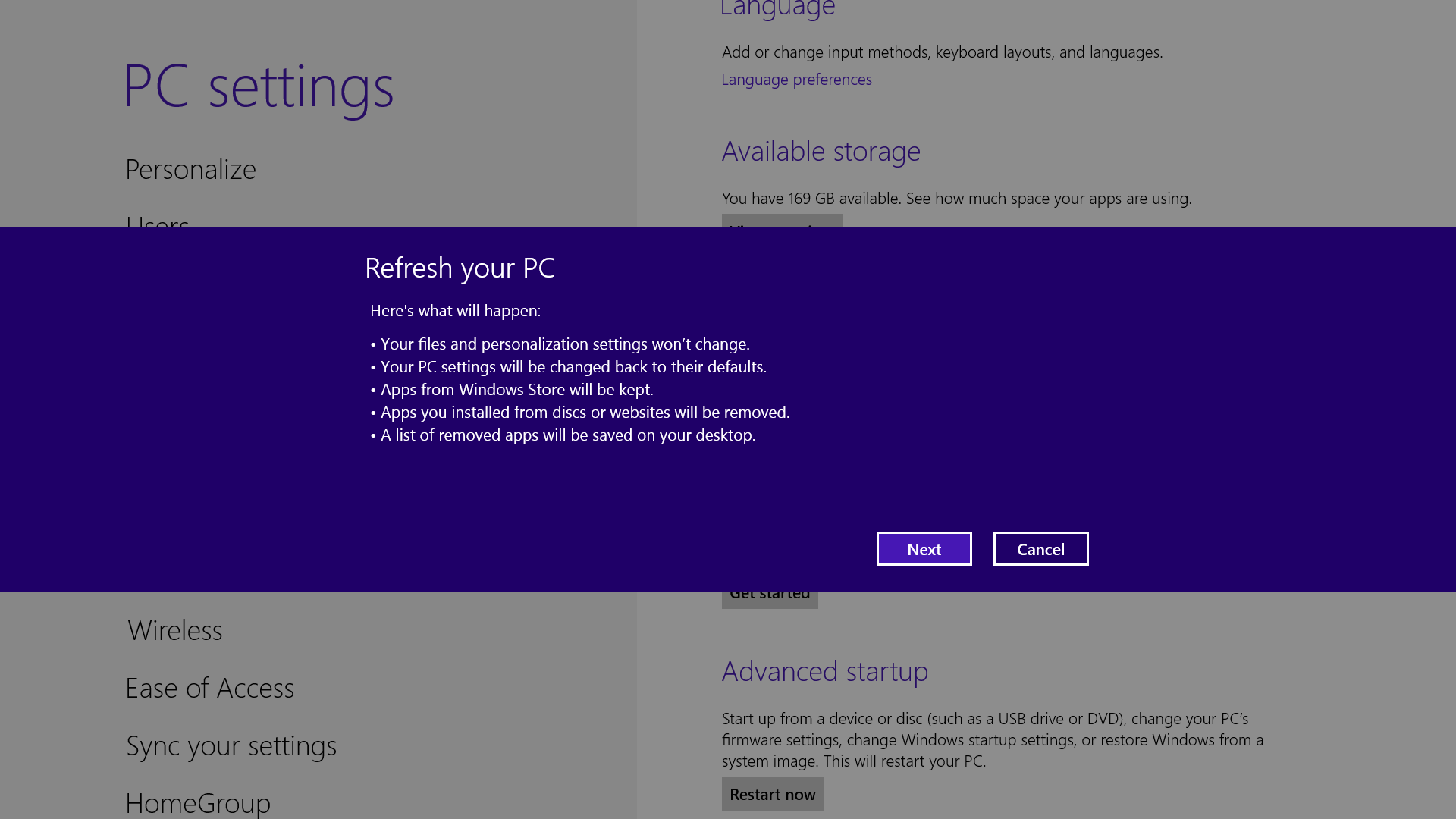
If your system is feeling a little sluggish, it may be time for a refresh. In the past we would have to find our copy of Windows 7, back up all of our data, and perform a fresh install to enjoy that back-to-factory-fresh feeling. But now Windows 8 allows you to perform a fresh install from within Windows without losing any data.
In order to perform the refresh, go to Settings and click theChange PC Settingstab near the bottom. Select theGeneraltab and find the "Refresh your PC without affecting your files" section near the middle (you may also select "Remove everything and reinstall Windows" to get the true factory settings treatment). Select "Get started" and press "Refresh." After a few minutes the PC will restart, and you will have a fresh copy of Windows 8.
Start in Safe Mode
Safe Mode is a great way to get into your system when something won't allow you to start up normally. Troubleshooting becomes a breeze when corrupted drivers and files aren't loaded that prevents a system from functioning. It used to be as easy as pressing F8 when the system starts up, but doing so with Windows 8 will take you to Automatic Repair Mode. The trick to getting back to good old fashioned Safe Mode? Hold down the Shift key and press F8 while booting up.
This takes you to the Recovery mode. Select "advanced options," then "troubleshoot," then the "advanced options" again (there are a lot of advanced options). SelectWindows Startup Settingsand finally theRestartbutton. This will reboot the computer and give you the option to boot into Safe Mode.
If you need to get into Safe Mode from within Windows, open the dialog box (the Windows key + R) and type "msconfig" (no quote marks). Select theBoottab and check theSafe bootbox. The system will continually boot into Safe Mode until you go back and uncheck the box.
Turn Live Tiles on and off
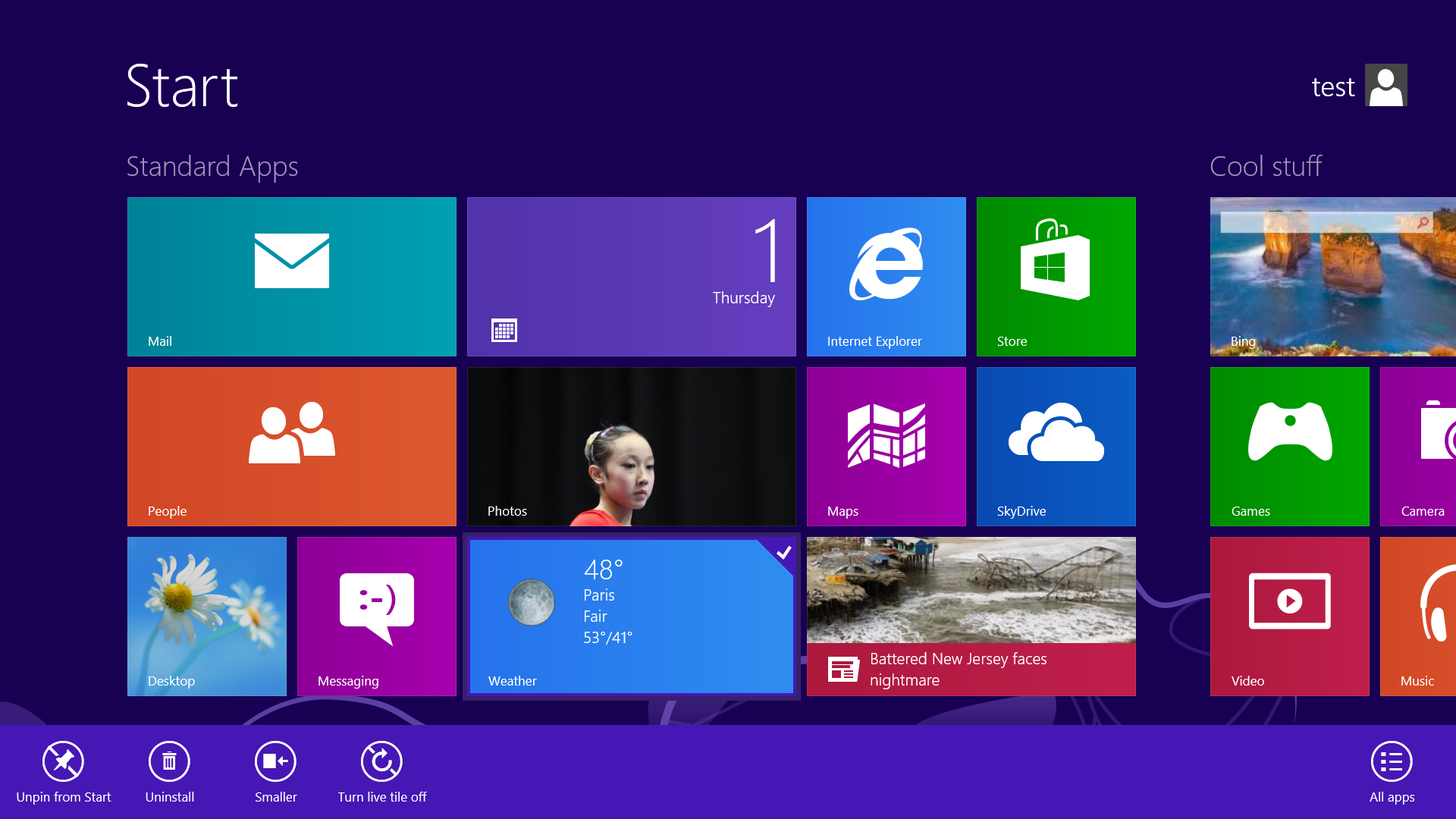
Use the Live tile option to customize what you want to see.
When looking at the plethora of tiles on your Start screen, the view can get stagnant, despite all the pretty colors.This is where Live Tiles come in. They offer real-time data right on your Start screen, and you don't need to open any apps. For example, the Weather tile will show you the current conditions, and Mail will show you the subject of the latest message you've received.You can customize which apps are live and which aren't by right-clicking on the tiles. A settings bar on the bottom will pop up with an option to turn the Live Tile on or off. Simply select the preferred option, and you're all set. Note, however, that not all apps have a live, real-time data-streaming option.
Find the Windows games folder
Currently, the games folder used in Windows 7 isn’t present in Windows 8. Fear not; if you install any current-generation PC game that would regularly save to this folder, the folder is automatically created. For a quick way to find it, right-click on the game icon on the Start screen and choose “Open file location” at the bottom.
Activate Family Safety
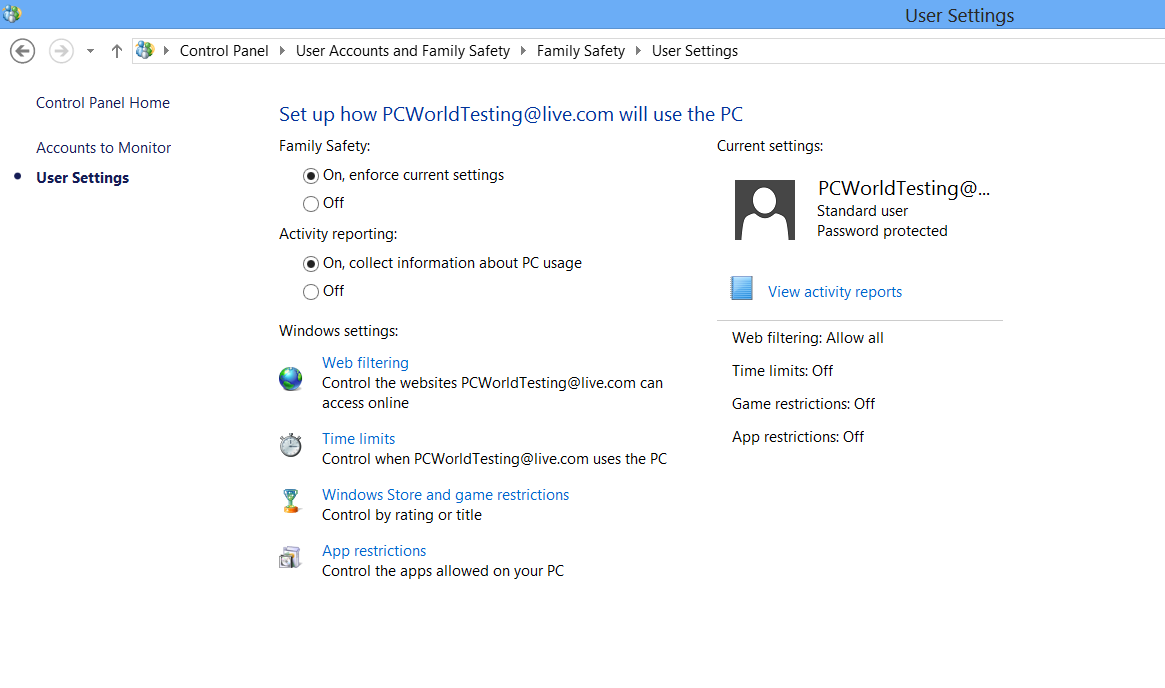
Let your kids play without having to worry.
Want to avoid some nasty surprises on your credit card? Create a separate, standard account on the device for your kids (Family Safety can't be applied to an administrator account). You can activate Family Safety by going to theControl Panel, User Accounts,andFamily Safety,and selecting the account you would like to apply it to. From these settings you can get reports on the account's activity; set a level of Web filtering; set time limits; and enforce Windows Store, game, and app restrictions.
Shut down with one click
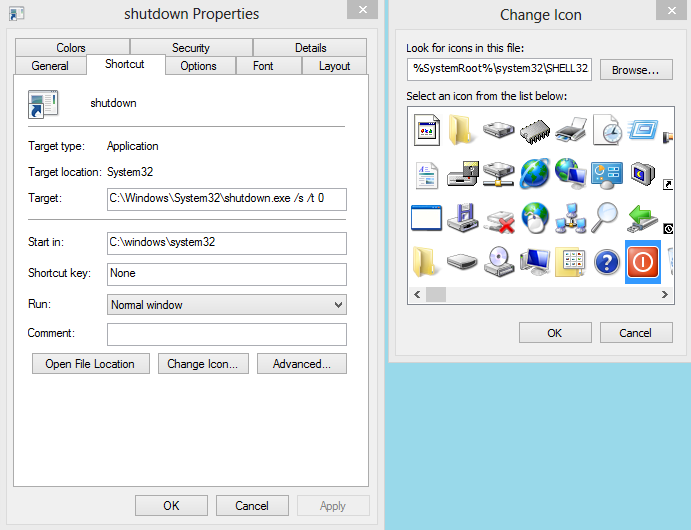
Easy to create button to shut down.
Windows 8 hides the Power button in the Settings menu, forcing a multistep process just to shut down one's PC. But thanks to a crafty shortcut trick, you can pin a Shutdown button right onto the bottom of your desktop. Here's how.
Create a shortcut on your desktop (right-click, go toNew,thenShortcut). Enter "shutdown /s /t 0" (with no quotes, and, yes, that's a zero not an "O") as the location of the item, and pressNext. Now name the shortcut (prefereably "Shutdown") and pressFinish.
Right-click the shortcut, and navigate toProperties. ChooseChange Iconin the Shortcut tab, and thenOKto leave the warning box. Choose an icon of your choice from the list. In the screenshot above, you'll see we chose a Power button.
Right-click the shortcut again, and selectPin to Start. You can place the icon on your Start screen wherever it's convenient. Clicking it will instantly shut down your computer.
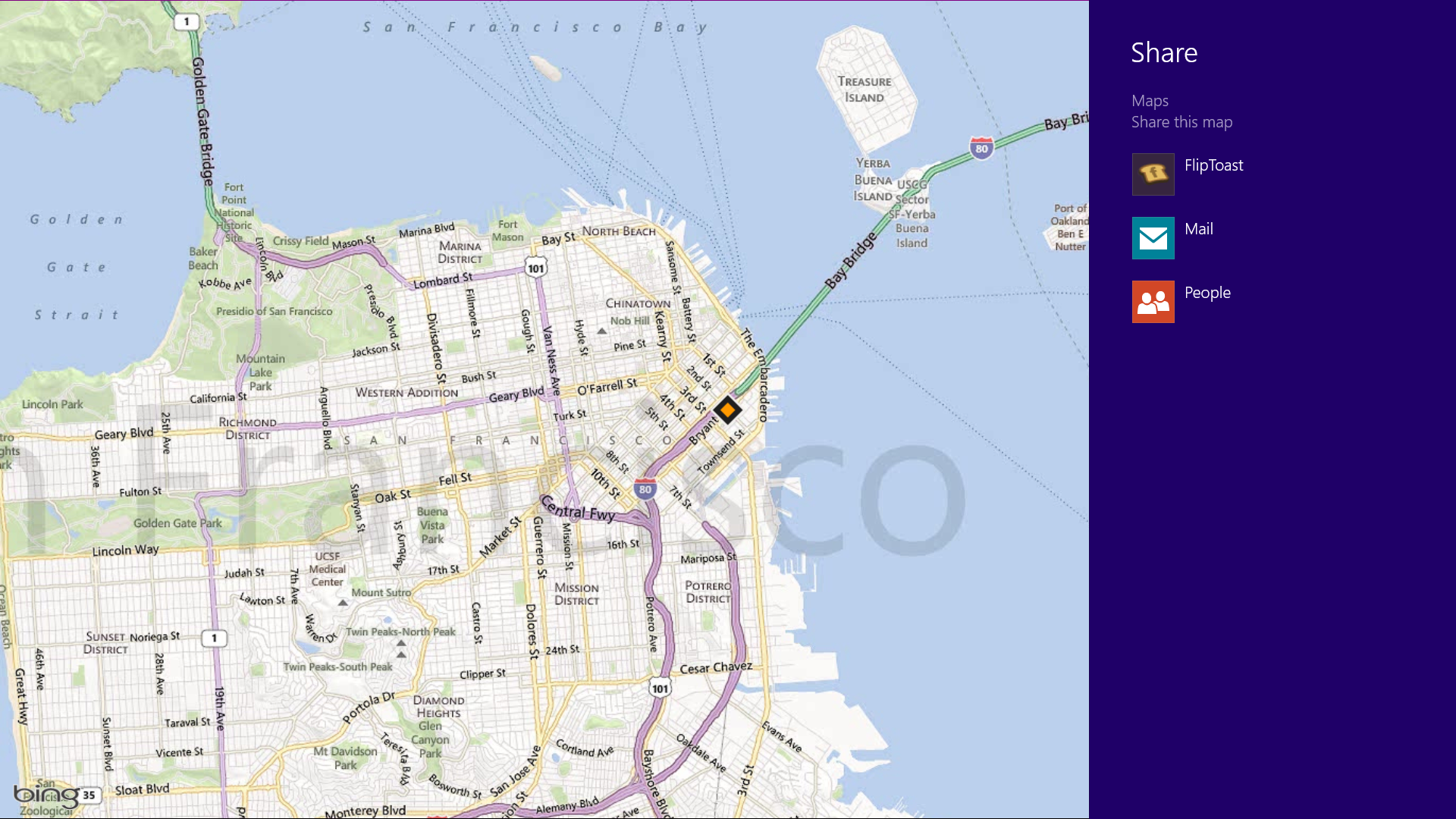
Windows 8 is Microsoft’s first social-media-aware PC operating system. Using the Share button located on the Charms bar, you can pick any number of elements from your Windows 8 Store apps—say, a location from your Maps app, a news story from the Finance app, or a even a contact from your People app—and then distribute that item to friends via other Windows 8 programs.
Perhaps most conveniently, you can quickly share a photo via email or Twitter, or to your own SkyDrive or Windows Phone. The Share button is contextual, and the more you use it, the more you’ll discover which apps share with each other, and which don’t. (Hint: None of your desktop apps offer sharing opportunities through the Charms menu.)
Create a picture password
A fun way to protect your system.
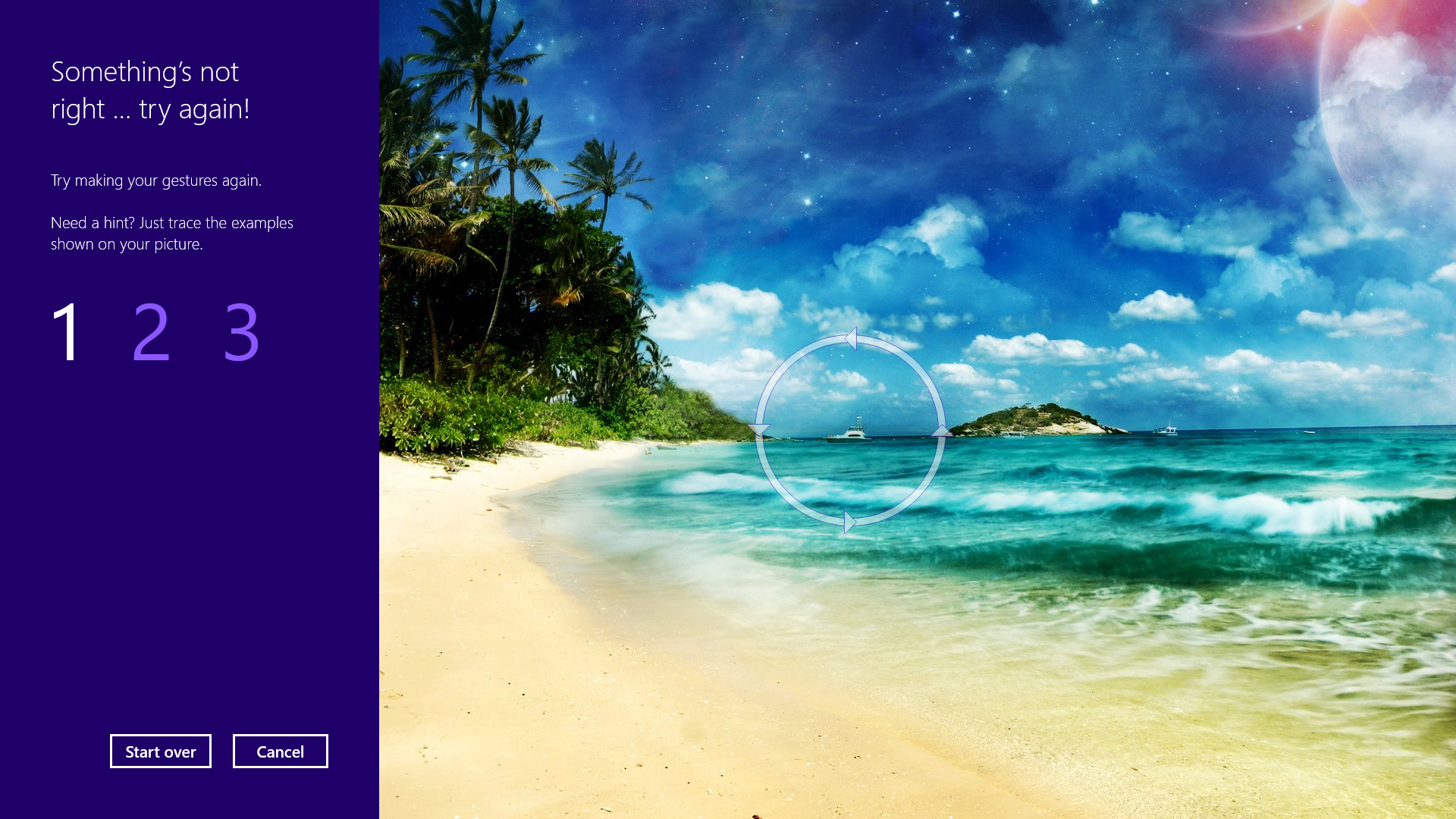
Using a picture password is a fun way keep your device secure while not having to remember a complex password. To enable it, press the Windows key + I to get to the settings charm. Click "Change PC settings" at the bottom right, and go to the Users tab. Under "Sign-in options" will be the "Create a picture password" button. This will give you the option to choose any picture, and then define three gestures anywhere on the image. Your gestures can be circles, swipes and clicks.
For example, to set a picture password for the image above, you could click on the highest palm tree, draw a circle around the island, and then swipe down from the lens flare in the upper right. Just beware: The direction of each gesture matters! After confirming it a couple times, your picture password will be set.
Boot to the desktop without an app
Skip the Start screen and get right to the Desktop.
One of biggest complaints about Windows 8 is that it boots straight to the Start screen—an annoyance for many committed desktop users. TheStart8 utilityhelps you avoid this indignity (among other cool features), but you can actually boot straight to the desktop without installing anything extra.
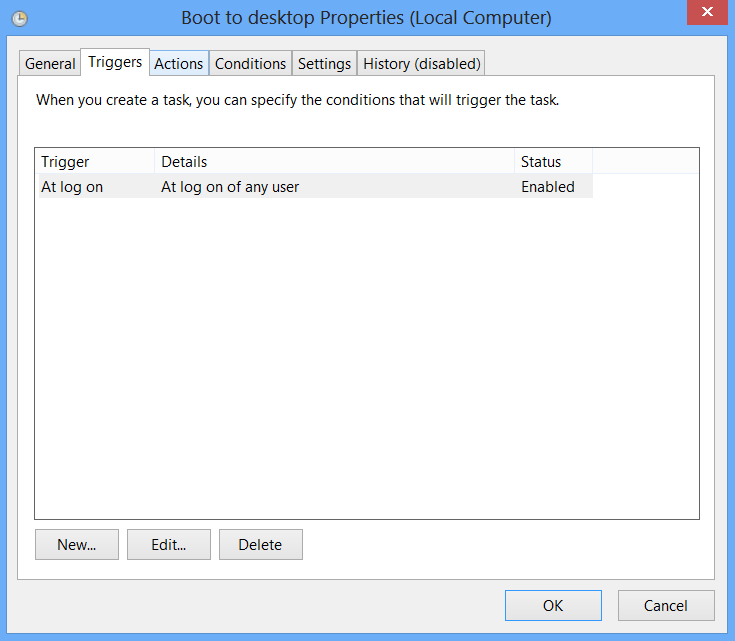
Go to the start screen and type in "schedule" to search for Schedule Task in Settings. Click onTask Scheduler Libraryto the left, and selectCreate Task. Name your task something like "Boot to desktop." Now select theTriggerstab, chooseNew,and use the drop-down box to select starting the task "At log on." ClickOKand go to theActionstab, chooseNew,and enter "explorer" for the Program/Script value.
PressOK, save the task, and restart to test it out!
Log in without a username or password
To speed up the log-in process, you may want to disable the username and password log-in screen. You can do so by opening the Run window (press the Windows key + R) and typing in "netplwiz" to access the User Accounts dialog box. Uncheck the box near the top that says "Users must enter a user name and password to use this computer." ClickOK,and enter the username and password one last time to confirm your choice, and you are all set for easy access to your system.
If there's any company that's going to have a field day with Microsoft's controversial new Windows 8, it's Stardock. Case in point: Start8, a free beta program the company markets that replaces the "missing" Start Menu on the Windows 8 explorer desktop taskbar. [After this review was written, the product launched in version 1.0 for a price of $5 with a thirty-day free trial. —Ed.]
If you're not familiar, Windows 8 has two completely different interfaces: The new tiled Windows 8 UI (User Interface) first seen with Zune and Windows Phones, and the classic Explorer desktop with a slightly updated look. The problem for many users is that there's no Start Menu for the latter: You initially use the Windows 8 UI to launch all applications no matter which interface they use. You can create desktop and taskbar icons to launch apps, but with the vast majority of existing programs support only the Explorer desktop, this results in a either a very busy desktop or a continual and somewhat jolting switch.
Stardock has fixed the most frequent complaint about Windows 8: the lack of a Start Menu.
Thanks to Stardock Software, however, you can have your Windows 8 cake and Start Menu too. The Start8 beta is a free download (it'll be $5 when the final version ships) that almost completely replicates the behavior of the Windows 7 Start Menu. It even matches the new look. I don't really have to tell anyone how the Start Menu works, right? Start8 also lets you disable the Windows 8 hot corners.
Start8 works great and eliminates the need to access the Windows 8 UI unless you want to. The only issue with Start8 that I spotted was slightly slow and somewhat inconsistent response of the Windows 8 hot corners; they didn't seem as smooth as they did without Start8 installed. I hope the shipping program will be more responsive.
I expect Stardock to make a small fortune off of this program, and if I were Microsoft I'd send the company a thank you note for making Windows 8 more usable. If you're using the Windows 8 preview, install the free Start8 beta and see just how much of a difference a Start Menu can make.
Note:The latest 0.95 beta fixes some of the issues mentioned inLincoln Spector's review from early September. The "Try it for free" button on the Product Information page takes you to the vendor's site, where you can download the latest version of the software. It remains free only until the beta period ends.
I'm not looking forward to Windows 8—and with good reason. If you don't have a touchscreen, there's not much to like aboutthe Interface Formerly Known as Metro. The fact that this hobbled version of the old, familiar desktop user interface lacks the beloved Start menu doesn't help.
But have no fear; the Start menu is here. Two separate utilities add a Windows 7-style Start menu to Windows 8. Since both allow you to boot directly into the desktop, either one can protect you from even looking at "Metro" unless you absolutely have to.
Of the two, Stardock'sStart8most closely resembles the Windows 7 Start menu. You have to dig pretty deeply into the program to find where it falls short—its configurability. Stardock currently offers Start8 as a free beta, and has not yet set the final price.
Each utility has its limits, but either one can make Windows 8 a far friendlier environment for experienced users.
Start8: Stepping up from 8 to 7
Once you install Stardock's utility, Windows 8 will look comfortably familiar. You'll see the old Windows 7 Start menu—with the same look and functionality. You'll discover the shortcomings later.
The final version of Start8 won't come out until October. I tested a beta version that, while available to the public, is not yet ready for general use.
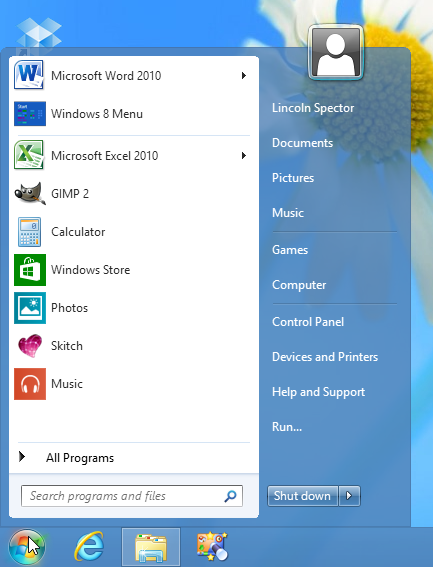
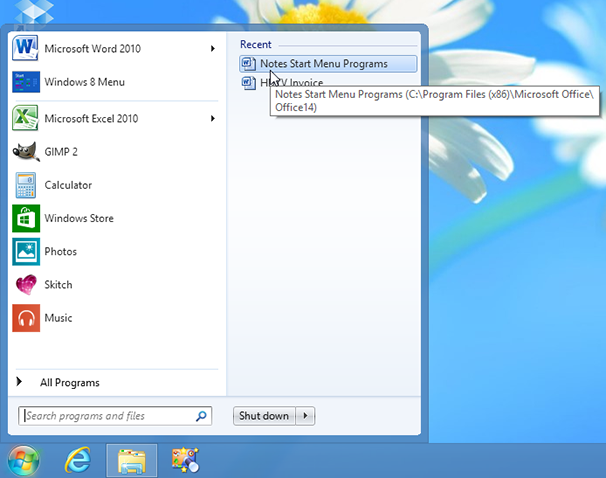
The Start menu looks and behaves remarkably like the real thing. Click the Start orb, and you get the same two panels with the same options.
The left panel shows the list of recently used programs, and a right-click gives you the option to pin a program permanently to the top of this list. As with Windows 7, many of the programs have their own recent-files list.
But the resemblance isn't complete. Right-click one of those recent files, and you'll find the appropriate option to pin the file on the Start menu. But—at least with this beta—that option does nothing.
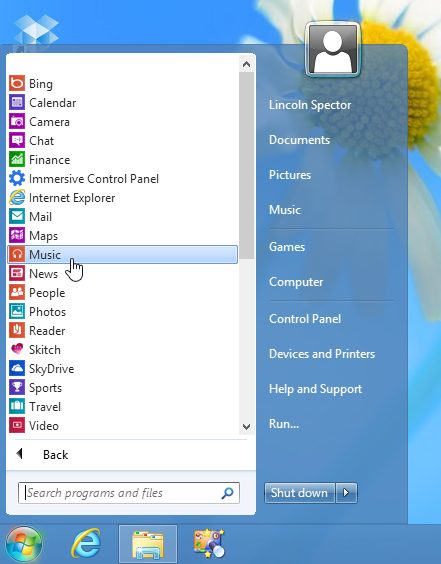
Start8 protects you from "Metro's" Start screen. When you boot, the program brings you immediately to the desktop (you can turn this feature off). You can even launch the new "Metro" apps from Start8's Start menu.
Of course, when you launch one of these apps, it opens in the boxy, two-dimensional style of Windows 8. You can't have everything.
But if you like to configure the Start menu, Start8 will disappoint you. Right-click the Start orb, and you'll find options to disable Windows 8's desktop hotspots and to change the Start orb's look (I like the bear print). But you won't find a Properties option. Start8 offers no way to change the Power button action, or to make Computer or Control Panel display as a menu.
Another configuration shortcoming: You can't drag and drop the contents of the All Programs section. If you want to, say, move all of your photo programs to their own submenu, you'll have to do it the clumsy way: right-clickingAll Programsand selecting eitherOpenorOpen All Users.And even this method doesn't help you move the Metro apps.
Start8 is largely a take-it-as-is offering. But it can still make Windows 8 feel like home.
Classic Shell: Configure it to be anything…except, perhaps, what you want
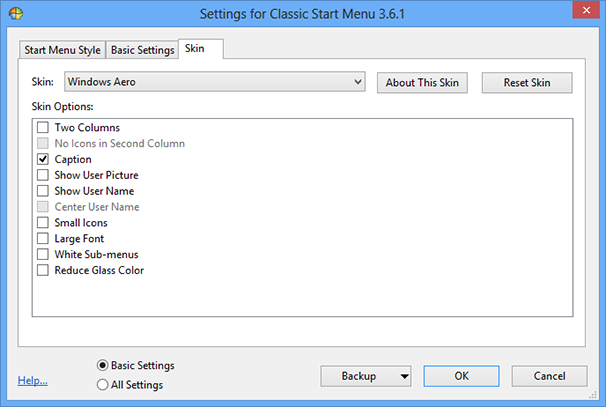
The first time you click Classic Shell's Start button (which looks like something jointly created by Microsoft and the Shell oil company), you don't get a Start menu. Instead, the program asks you what kind of Start menu you want: Windows Classic, XP, or Vista/Windows 7.
This is just the first tab of an extremely option-filled dialog box. In Basic mode, it offers three tabs. But if you selectAll Settings,you get 13. In addition to options familiar to Windows 7 veterans (such as whether documents display as a link or a window), it allows you to change the look of the Start orb, and separately control the main menu and submenu scroll speeds.
You can save your settings as an .xml file, and thereby switch between configurations.
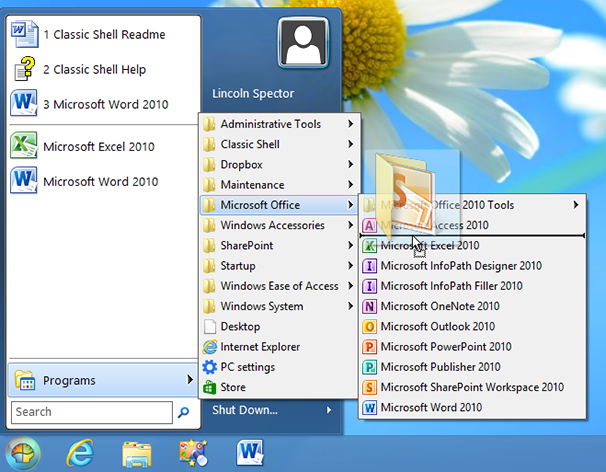
Unfortunately, the Vista/Windows 7 menu behaves more like Vista than Windows 7. Although it displays recently used programs in the left pane, there's no clear option to pin programs to the list. You can effectively pin a program by dragging it below the line (unlike in Windows 7, where the pinned programs are above
the line), but this oddly leaves the program inbothplaces.
On the plus side, you can insert a folder below the line, and drag additional programs into what effectively becomes a subfolder. But on the negative side, Classic Shell lacks application-specific recently used file lists—a major advantage of the Windows 7 Start menu that's sorely missed here.
You'll have no trouble organizing the All Programs menu (which Classic Shell calls Programs)—for instance, to place all of your media players in the same submenu. As with Windows 7, you can simply drag and drop shortcuts and folders.
Classic Shell tries to protect you from the Windows 8 Start screen but with limited success. Unless you choose otherwise, it brings you directly to the desktop every time you boot Windows 8. But it doesn't list Windows 8 apps, requiring you to switch from the Start menu to the Start screen (by default, you do this byShift-clicking the orb) to launch one of the newer apps.
For a program that's supposed to bring you back to a comfortable, familiar way of working on your computer, Classic Shell has a surprisingly long learning curve. But if you want not only a Start menu but also a configurable one, this program is worth checking out.