Tuesday, April 2, 2013

How to combine all .vcf files to single .vcf file manually

Vcard and Vcf :
In general to back up our phone contacts/or to import our contact from one device to another device we generally use “VCARD” feature. By using this feature we can back up our phones contacts. vCards(.vcf files) are very important part of our life because we all are using some kind of mobiles, smart cellphones, PDA devices, iPhones, Tabbing Devices plus our online email accounts In general after Vcard conversion all contacts are converted into individual (vcf) files .If we want import over 200 contacts from Outlook/Exchange/mobile vcard  into Google Contacts, with their photos we can convert multiple .vcf files into single vcf files by using COMMAND prompt.Now a days so many mobiles having vcard as inbuilt feature.
I have made this post because I have a bulk of vCards (288 to be precise) that I transferred from my phone (via Bluetooth) to my computer. Now I want to bulk import them into my Google Contacts but. multi-select feature on the import section. To make matters worse, the vCards are named sequentially, not by the contact name so it's hard to pick and choose what I want imported. So i have found one solution to combine all vCards(.vcf files) into one Single vCard(.vcf file) file.
Steps to Bulk Import (Merge/combine) vCards into One Contact List(Single .vcf file)
Step 1. First Copy all your vcf files into one Folder/directory.
Step 2. Open Windows command prompt (Windows + R),and then type “CMD” to open command prompt and navigate to the destination folder where all your contact files are stored (you can type CD YOUR PATH command to reach to your destination).
Ex: you have copied your vcf files in folder named “singlevcf” then in command prompt type in “E” drive
                                E:
                                cd singlevcf  
Step 3. Enter the following DOS command: copy *.vcf all.vcf

Step 4. Now you will get all your .vcf files merged into single .vcf file, just Import the created single .vcf file whenever required. This single vCard file will also work on your Google account.

NOKIA EMERGENCY BATTERY BACKUP(30% INCREASE)


1 Imagine ur cell battery is very low, u r expecting an important call and u don't have a charger. Nokia instrument comes with a reserve battery. To activate, key is
"*3370#" 

Ur cell will restart with this reserve and ur instrument will show a 50% incerase in battery. This reserve will get charged when u charge ur cell next time. sound quality but talk time is reduced by approx. 5% .
#3370# Deactivate Enhanced Full Rate Codec( EFR)

*#3370# - Enhanced Full Rate Codec (EFR) activation. Increase signal strength, better signal reception. It also help if u want to use GPRS and the service is not responding or too slow. Phone battery will drain faster though.

*#3370* - (EFR) deactivation. Phone will automatically restart. Increase battery life by 30% because phone receives less signal from network.
*#4720# - Half Rate Codec activation.
*#4720* - Half Rate Codec deactivation. The phone will automatically restart

If you forgot wallet code for Nokia S60 phone, use this code reset: *#7370925538#
Note, your data in the wallet will be erased. Phone will ask you the lock code. Default lock code is: 12345

Press *#3925538# to delete the contents and code of wallet.

Unlock service provider: Insert sim, turn phone on and press vol up(arrow keys) for 3 seconds, should say pin code. Press C,then press * message should flash, press * again and 04*pin*pin*pin#

*#7328748263373738# resets security code.
Default security code is 12345
  1.  #pw+1234567890+1# Provider Lock Status. (use the "*" button to obtain the "p,w" and "+" symbols)
  2. #pw+1234567890+2# Network Lock Status. (use the "*" button to obtain the "p,w" and "+" symbols)
  3. #pw+1234567890+3# Country Lock Status. (use the "*" button to obtain  the "p,w" and "+" symbols)
  4. #pw+1234567890+4# SIM Card Lock Status.(use the "*" button to obtain the "p,w" and "+" symbols)
  5. *#147# (Vodafone) this lets you know who called you last *#1471#  Last call (Only Vodafone)
  6.  *#21# Allows you to check the number that "All Calls" are diverted  To
  7.  *#2640# Displays security code in use
  8.  *#30# Lets you see the private number
  9.  *#43# Allows you to check the "Call Waiting" status of your phone.
  10.  *#61# Allows you to check the number that "On No Reply" calls are diverted to
  11.  *#62# Allows you to check the number that "Divert If Unreachable(no service)" calls are diverted to
  12.  *#67# Allows you to check the number that "On Busy Calls" are diverted to
  13.  *#67705646# Removes operator logo on 3310 & 3330
  14.  *#73# Reset phone timers and game scores
  15.  *#746025625# Displays the SIM Clock status, if your phone supports this power saving feature "SIM Clock Stop Allowed", it means you will get the best standby time possible
  16. *#7760# Manufactures code
  17.  *#7780# Restore factory settings
  18.  *#8110# Software version for the nokia 8110

Nokia security codes list

On the main screen type

*#0000# - Display the software version, the date when the software was built and the phone model. In some cases, the phone model is not the one used by marketing. It is the internal model used inside Nokia. For example, RM-36 is the internal name of Nokia 6680.


  *#06# for checking the IMEI (International Mobile Equipment Identity).


                                                *#7780# reset to factory settings.


*#67705646# This will clear the LCD display (operator logo).

*#2820# Bluetooth device address.


*#746025625#  Sim clock allowed status.
*#62209526# - Display the MAC address of the WLAN adapter. This is available only in the newer devices that support WLAN


*#92702689# - takes you to a secret menu where you may find some of the information below:
1. Displays Serial Number.
2. Displays the Month and Year of Manufacture
3. Displays (if there) the date where the phone was purchased (MMYY)
4. Displays the date of the last repair - if found (0000)
5. Shows life timer of phone (time passes since last start)

Know when to switch to HDR mode or Backlight scene mode in HTC

Too dark With HDR
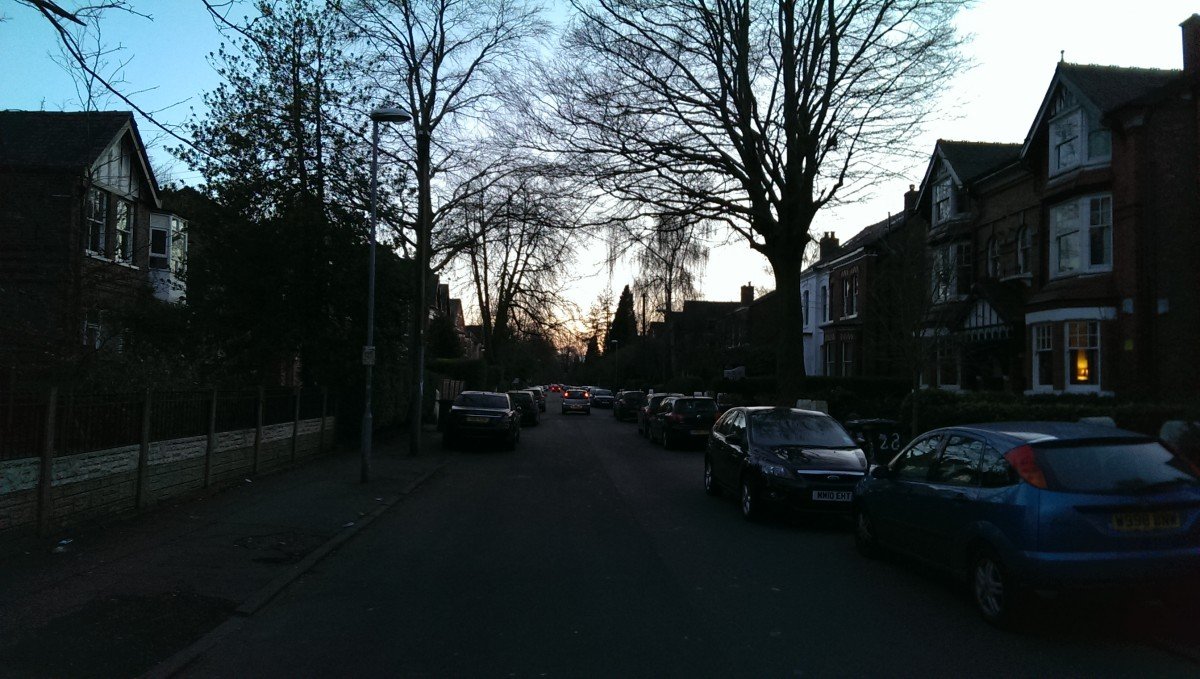
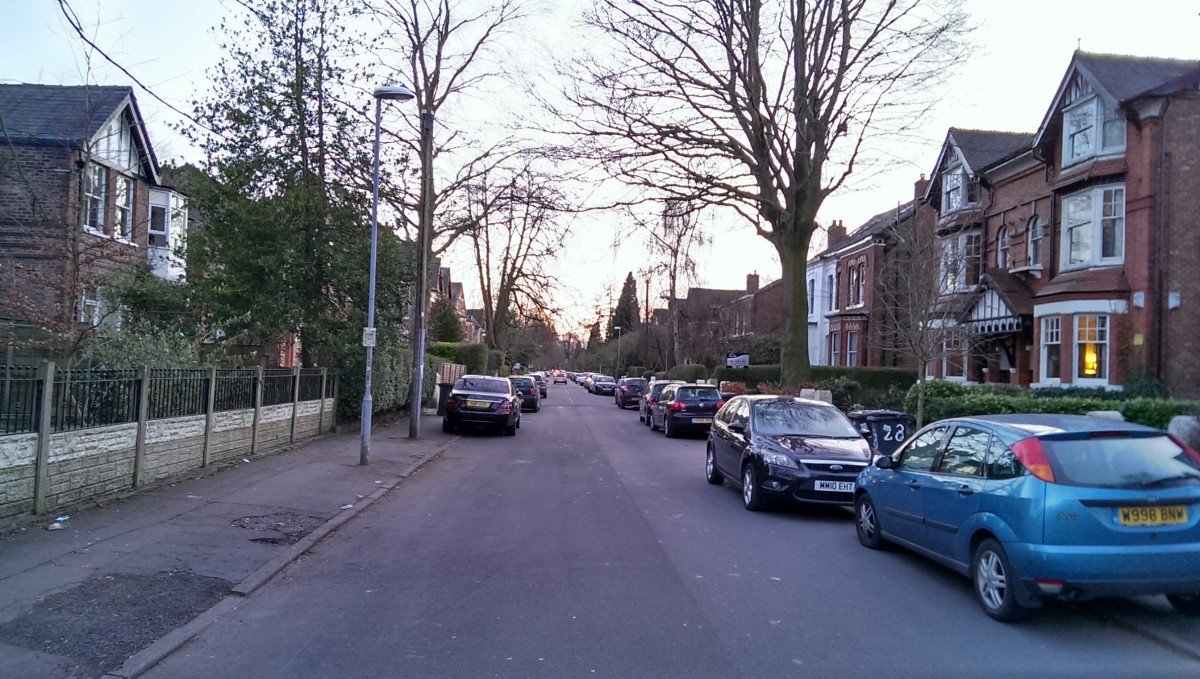
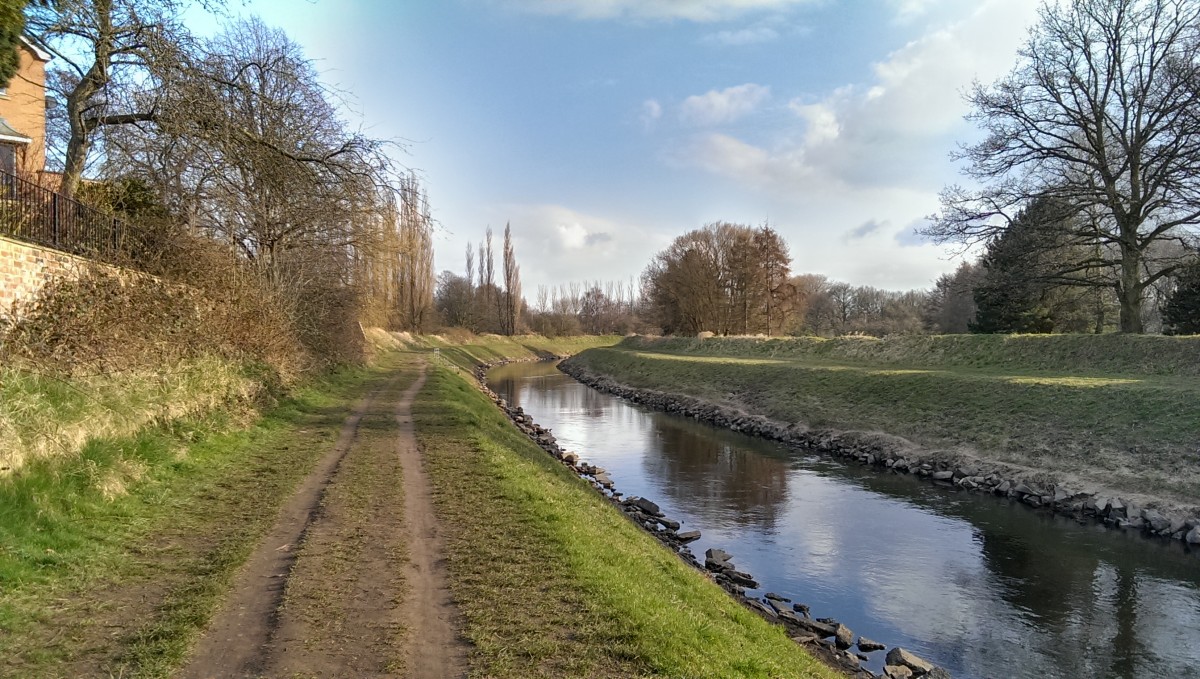
As we mentioned in our review, the HTC One’s rear camera has lower dynamic range than other high-end phones. That means it sometimes struggles to resolve photos with a mix of bright and dark areas -- for example, shooting a landscape with a bright sky in the background.
You can usually tell on-screen when you’re going to have issues with dynamic range -- either the sky will become whited-out, or the terrain will become unrealistically dark. To work around this, switch to HDR mode (Menu > Photo capture mode > HDR) or Backlight scene mode (Menu > Photo capture mode > Scene > Backlight). Backlight works best in moderate cases; HDR is better in shots with extreme brightness differences. (And the HTC One’s HDR mode in particular is among the best we’ve seen on a phone.)
HDR shot
Again, remember that all scene modes are reset when you leave the camera app.

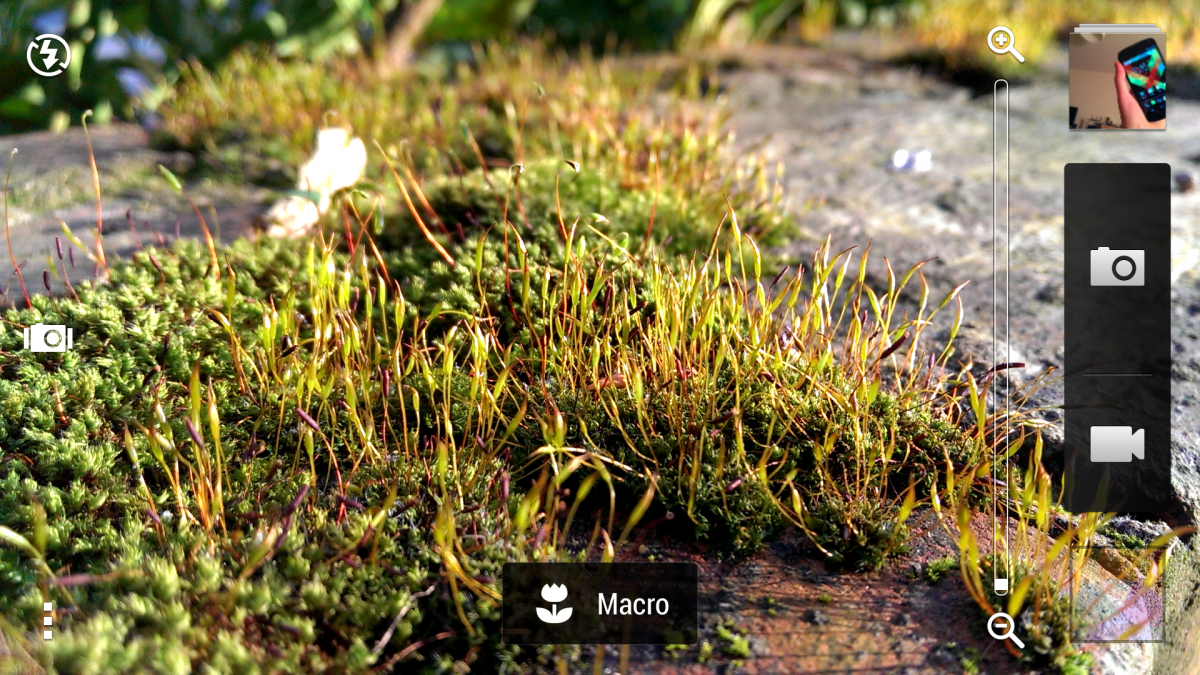
For close-ups, use Macro sce​ne mode in HTC

Macro shot
This might seem obvious, but unlike a lot of modern phones the HTC One doesn’t automatically switch to macro focus mode when you target a close-up subject. So to take in-focus close-up shots, you’ll need to go to the main camera menu, tap the triangle under “Scene” in “Photo capture mode,” then select “Macro.” Note that when you quit out of the camera app, the scene mode will default back to “Normal.”

For best results in regular shots, use Zoe​ mode in HTC

There’ll be plenty of instances where you’ll want to use a specialized scene mode to get the best shot. But if you’re just taking pictures in normal mode, you’ll get more flexibility out of Zoe mode, which captures a series of shots and a short video. It also starts buffering frames before you press the shutter button, meaning even if you’re a little late (or early) in pressing the shutter, you might not miss that crucial shot.
Zoes also make for better video highlights. As you’d imagine, a highlight reel consisting of short video clips looks better than one dominated by still photos.

Give yourself a lock screen shortcut, and use “sightseeing mode”

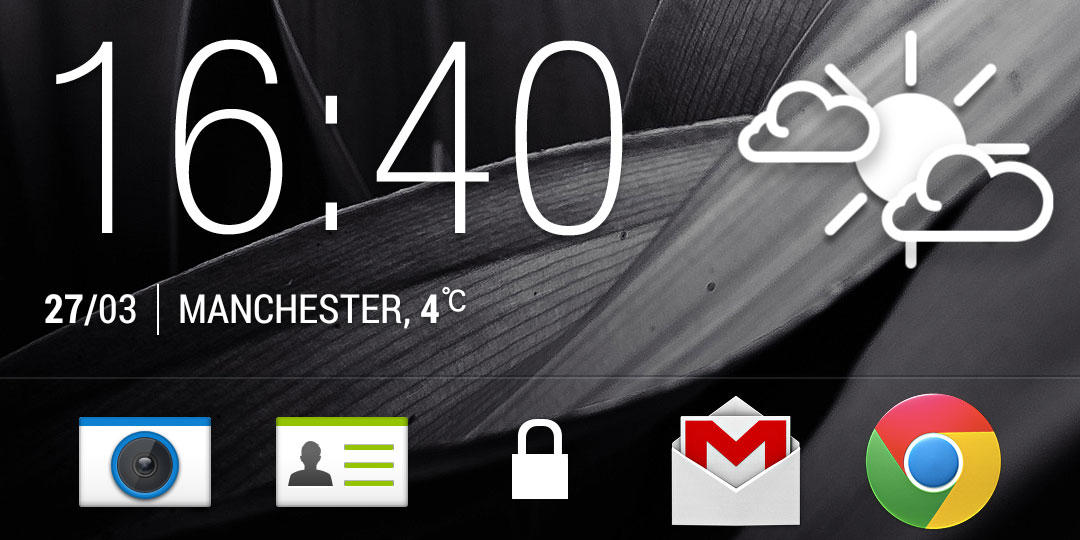
Lock screen shortcuts
The HTC One -- and many other HTC Sense devices -- make it easy to jump straight into the camera application.  If you keep the camera app in the app dock at the bottom of the screen, you’ll be able to drag this up and immediately launch the camera app from the lock screen.
HTC Sense’s “sightseeing mode” also means you can easily jump in and out of the app at ease. Lock the screen at the camera app, then the second you press the power button again, you’ll bypass the lock screen and jump back into the camera app. As the name suggests, that’s ideal if you’re out and about shooting lots of pictures of different stuff.
Both of these tricks will bypass any lock screen security you have set up, but to do anything outside of the camera app you’ll still need to enter your pattern or PIN lock.