Showing posts with label windows. Show all posts

Monday, December 9, 2013

Microsoft Security Intelligence Report Application for Windows

The Microsoft Security Intelligence Report Windows application analyzes the threat landscape of exploits, vulnerabilities, and malware using the latest data from hundreds of millions of systems around the world and some of the Internet’s busiest online services.
Language:
English


Details
Version:
Date Published:
1.0 8/13/2013
File name:
File size:
SIR-V14-Setup.msi 18.9 MB
    The Microsoft Security Intelligence Report Windows application analyzes the threat landscape of exploits, vulnerabilities, and malware using the latest data from hundreds of millions of systems around the world and some of the Internet’s busiest online services. Readers will find the data, insights, and guidance provided in this report useful in helping them protect their organizations, software, and users.   Key features of the application include: · All content, in one convenient place – includes all 800+ pages of content from Volume 14 of our latest report and is fully searchable. · High fidelity charts – Many customers have asked us if they can obtain high resolution versions of the charts. We’ve delivered that in the application and have even included the “save as” functionality so that customers may use them in other applications, such as PowerPoint. · Reader friendly – We’ve designed the application with you, the reader in mind. One example of this is the integration of our glossary into the body of a page which appear as mouse-over tool-tips. 
System Requirements
Supported Operating System
Windows 7, Windows 7 Service Pack 1, Windows 8
    Windows 7, Windows 7 Service Pack 1, Windows 8 Supported Architectures · x86 · x64 Hardware Requirements Recommended Minimum: · 1 gigabyte (GB) RAM (32-bit) or 2 GB RAM (64-bit) · 50 MB available hard disk space · DirectX 9 graphics device with WDDM 1.0 or higher driver Prerequisites · Internet Explorer 10 · .NET Framework 4.
Install Instruction 
1. On this page, locate the Download button and then click it to start the download. 2. To start the installation immediately, click Run. 3. To save the download to your computer so that you can install it later, click Save. 4. To cancel the installation, click Cancel.

Friday, August 16, 2013

How To Make Nameless And Invisible Folder In Windows

How To Make Nameless Folder:-

Before attempting this trick, try to make a folder with no name and you will fail to do so. This is what this trick will let you do. Below is screenshot of folder before and after doing this interesting trick.
Also Check:-  Get True Caller for Android, iPhone, Nokia, Windows Phone etc.

STEP 1.
Make a New folder on desktop or where ever you want. 

STEP 2.
Right click on this newly created folder and select Rename. 

STEP 3.
Erase the text showing "New Folder". 

STEP 4.

Now keep Pressing Alt (i.e alter key) and type 255. If you are on laptop then you need to enable your Num Lock and type from the highlighted number keys not from those below function keys.
STEP 5.
After that leave alt key and Press enter.

STEP 6.
Done you just created nameless folder. 

How To Make Invisible Folder:-

Now Here is the tutorial how to make that folder  Invisible. What you have tu do is to follow the simple steps.

STEP 1.
Now Do Right Click  On That  Folder And Go To Properties  

invisible-folder

STEP 2.
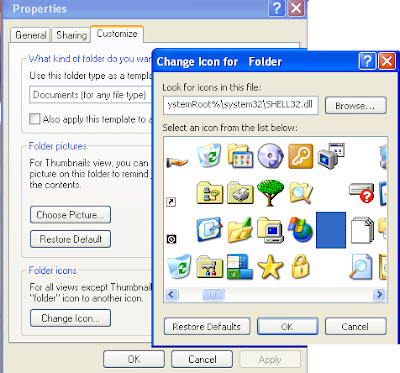
 Then Go To The Customize Option 

STEP 3.
Then Click On Change Icon 

STEP 4.Then Slide it right You will Find A Invisible Icon Click On That And Then Click Ok

STEP 5.

 Thats All Done

NOTE:- If you are faceing any problem just comment below.

Get Truecaller for Android, iPhone, Nokia, Windows Phone etc.

What is True Caller? :-

A global phone directory to find people from all over the world through name and phone number look up. Get the app for free to your Android, iPhone, Windows Phone, Blackberry and Nokia Symbian phone.

 How True Caller Works:-

In short, people basically upload their phone book to True Caller's servers which contains names, phone numbers and other details. Once the information is uploaded, True Caller knows which number corresponds to what name. Each person who installs the app uploads the phone book and the overall database at True Caller keeps on growing. So even if you shared your phone number with only one of your friends who is a True Caller user, your number has been shared with True Caller and if you call any other True Caller user, you won't be anonymous.

It's a very simple concept that's executed very well. I have big concerns over the privacy breach this causes because your friends and relatives are sharing your phone number - something which you just cannot control. 

What do you think about True Caller's technology and modus operendi?

Here Is The video Must Watch.................


********** True Caller ***********


Wednesday, August 7, 2013

Keep Windows clean these 6 Free Tools

Windows users remember the first day they installed Windows when everything went smooth, every function worked fine, responsive to our needs without any hindrance. This perfection doesn’t lasts too long and as the time passes,conditions starts becoming bad to worse. Its the time when they need proper cleaning and maintenance.

1) Bleachbit


Bleachbit free windows cleaner 6 Free Tools to keep Windows clean

It is open source and is basically responsible for the cleaning of files, with a fairly long list of programs. Besides the most common browsers, clean traces of Google Earth, Flash, Java, Second Life Viewer, Skype, and Vuze. Runs on Windows and Linux. The interface might not appear too interactive, but it cleans your system efficiently.
Download: Bleachbit

2) Ccleaner


Ccleaner free windows cleaner 6 Free Tools to keep Windows clean

It is free, and has a portable as well as installation version. It is one of the best known, very intuitive to use, quick to analyze the system, not just cleans the files, but it repairs the registry and even has an uninstall utility to manage and what programs are initiated with the system. It is my personal favorite, so we recommend it.
Download: Ccleaner

3) DiskMax


Diskmax free cleaner windows 8 6 Free Tools to keep Windows clean

DiskMax is one of the most used free cleaner for Windows. Once started, it can automatically extract a lot of usable Disk space. For the first time you have to specify your choices for cleaning. From the second run you won’t have to give any attention to it as all the preferences are saved.
Download: DiskMax

4) FCleaner


Fcleaner free package 6 Free Tools to keep Windows clean

Does an excellent job at finding junk files, up to 15% more than Bleachbit. Also has an uninstaller, program manager for booting, and shortcuts to system tools. Free installable and portable.
Download: FCleaner

5) Glary Utilities


Glary Utilities free download 6 Free Tools to keep Windows clean

Free portable. Along with the basic features (such as problems with search files, the registry or shortcuts broken), brings a few more features, like search for malware, optimize memory, encrypt files and analyze the use of disk space, among others.
Download: Glary Utilities

6) nCleaner


ncleaner windows 8 6 Free Tools to keep Windows clean

Besides cleaning up files, provides a monitor of the system tools to modify the system, reducing space, program manager at startup, and support for many extensions that handle more specific tasks, like cleaning behind ACDSee, ICQ, Incredimail, Kazaa or Winamp.
Download: nCleaner

Sunday, August 4, 2013

How to jump to the desired registry key with one click

If you are addicted to various registry tweaks like I am, you probably work with the Registry Editor very often. Various websites related to tweaking instruct you to go to different registry keys. I would like to share my own way to jump to the desired registry key directly and skip manual navigation with the Registry Editor. This can be done with a simple VB script file without using third-party software. Click "Read more" if you are interested.

Overview

Since Windows 2000, the Registry Editor is able to remember the last opened key before you closed it. This data is stored at the following registry key:
HKEY_Current_User\Software\Microsoft\Windows\CurrentVersion\Applets\Regedit
The Last Key value is used by Windows to store the last used key.
As you can see, this is a per-user registry branch, so Windows stores the last used key for every user separately. It is possible to utilize this feature to directly jump to the key you need. Let me show how it can be done via Windows Scripting Host and VBScript.

The Implementation

The idea is to copy the full path of the desired registry key to the clipboard and replace the LastKey value with the copied value from the clipboard. When regedit.exe is started after doing this,  it will open directly at the key you want.

How to fetch clipboard content with VBscript

The "htmlfile" ActiveX object is used to display HTML help and HTA files in Windows. It can be used to fetch clipboard content. It does not even require IE to be installed . The code is as follows:
set objHTA=createobject("htmlfile")
cClipBoard=objHTA.parentwindow.clipboarddata.getdata("text")
If clipboard content is text, it will be stored in ClipBoard variable. Simple, isn't it?

Directly opening Regedit at desired key

Since we now have the desired key in cClipboard, we have to write it into LastKey value metioned above. The code for that is:
Dim WshShell
Set WshShell = WScript.CreateObject("WScript.Shell")
WshShell.RegWrite "HKCU\Software\Microsoft\Windows\CurrentVersion\Applets\Regedit\LastKey", сClipBoard, "REG_SZ"
This code snippet is self-explanatory, so there is no need to comment it.
The final script looks like this:
Dim objHTA
Dim cClipBoard
Dim WshShell
set objHTA=createobject("htmlfile")
cClipBoard=objHTA.parentwindow.clipboarddata.getdata("text")
Set WshShell = WScript.CreateObject("WScript.Shell")
WshShell.RegWrite "HKCU\Software\Microsoft\Windows\CurrentVersion\Applets\Regedit\LastKey", cClipBoard, "REG_SZ"
WshShell.Run "regedit.exe -m"
Set objHTA = nothing
Set WshShell = nothing
Note that WshShell.Run "regedit.exe -m" line. It contains the undocumented "-m" switch, which allows you to run multiple instances of  Regedit simultaneously.
I have saved this script as "RegNav.vbs" file and you can download it right now:
If opening Regedit is a very frequent task for you, then you can pin regnav.vbs to the taskbar. Create a new shortcut  and type the following into the shortcut target text box:
wscript.exe d:\regnav.vbs
Don't forget to use the correct path to regnav.vbs.
Now right click on the shortcut file you have created and click "Pin to Taskbar" from the context menu. That's all.

P.S. How to test this script

  1. Select this text
    HKEY_LOCAL_MACHINE\SOFTWARE\Microsoft\Windows NT\CurrentVersion\Winlogon
  2. Press CTRL+C
  3. Click on regnav.vbs.

Windows Registry Editor for dummies

Often, our tips mention the Windows Registry and Registry Editor. What exactly is the Registry and what is Reg Edit? Those are who are familiar with Windows for many years need no explanation, but those who are new to Windows will find this post useful.
Today, I am going to explain the fundamentals of Registry Editor. I will also cover command line arguments, essential methods of working with this program and more. Read below if you are interested.

What is Registry Editor

Registry Editor was born as a tool for users who want to change Windows settings which are not exposed in the user interface. The main purpose of this tool is to view and change the settings in the system registry - a set of special files which contain configuration information about Windows and almost all software installed. Windows and many programs (except the ones which are "portable") use this information to read and write their own settings to the registry.

How to launch Registry Editor

Regardless of the Windows version you have installed, this method will work:
Press Win+R keys on your keyboard, the "Run" dialog will appear. Type regedit without quotes and press Enter. Continue with the UAC prompt.
The main executable file of Registry Editor is located in the C:\Windows directory. So you can navigate to that folder and run the regedit.exe file directly. Or you can create a shortcut to Regedit.exe and paste it in the Start Menu at %ProgramData%\Microsoft\Windows\Start Menu\Programs under the System Tools folder. This will make Registry Editor show up in Start Menu search as well.
Registry Editor looks like this:
regedit

What Registry Editor shows you

As seen in the picture above, it consists of two panes - the left pane shows a hierarchical view of data structures, called keys, and right pane shows values -  which are pairs of name/data stored within keys.
Keys are a virtual view of data from several files, which form the registry database. You can see which files represent your registry database if you open the following key:
HKEY_LOCAL_MACHINE\SYSTEM\CurrentControlSet\Control\hivelist
hivesHere you can see the list of files on your hard drive where the registry files are stored. The data inside them, as mentioned above, has a hierarchical structure. Registry Editor shows it as a tree view: there are "root" (parent) keys, and several sub-keys (child objects). The root keys shown in Regedit for the most part, represent the specific file, or in other words, the registry files correspond to keys' hierarchy. However, there are also some virtual root keys shown in Regedit which exist for backward compatibility. For example, HKEY_CURRENT_CONFIG is a virtual view, and HKEY_CLASSES_ROOT is also a virtual view of the current user's key + system keys.
Note that some parts of the registry database are never shown in Registry editor. For example, you will never see SAM (Security Accounts Manager) inside Regedit.
The values are used by Windows and many applications to store various configuration parameters and their data.  Values are of various types, but in the general case, there are string values, numeric values or binary values.

How to create a new key

To create a new key, you must right click on the parent key in the left pane and click the New -> Key context menu command.
newkey
You must give the newly created key a proper name as required by the software for which you are creating it. You can export (save) the key into a *.reg file from the context menu. By exporting it to a file, you can later simply double click the .reg file to import its contents back into the Registry.

How to create a new value

To create a new value, you must right-click
  • on the current key in the left pane or
  • in the empty area in the right pane.
Select the appropriate type for the new value and enter its name. Double click the value you created to set its data as required.
new value

How to take ownership of a registry key

Just like permissions and ownership concepts exist for objects in the NTFS file system, they exist for Registry keys as well. Starting with Windows Vista, in fact, a large number of OS-specific registry keys which store Windows settings as protected by Windows Resource Protection so that they can't be easily deleted or modified. You may need to modify these keys in certain situations. For that, you need to take ownership as well as set permissions (access rights) on them. For example, in order to tweak the Explorer command bar, Winaero's Explorer Toolbar Editor takes ownership of certain registry keys and changes their permissions as well. Taking ownership is quite simple and can be performed with the following steps.
1. After you open Registry Editor, go to the registry key you want to take ownership of, right-click on it and select the Permissions... option from the context menu.
Permissions option in the context menu
2. This will open the "Permissions" dialog for that key. Click the Advanced button.
Permissions For Key
3. The "Advanced Security Settings" window will appear. Here you need to change the Owner of the key. Depending on the Windows version, this dialog may look different:
  • For Windows XP

    Open the Owner tab.
    Owner Tab in Windows XPSelect your user account and click the Apply button. If the ownership must be set on all subkeys too,  then check the Replace owner on subcontainers and objects checkbox.

  • For Windows 7 / Windows Vista

    Open the Owner tab.
    Owner Tab in Windows7Click the Other users or groups... button.
    Select a User in Windows7Select the user account via the Advanced button or just type your user account in the Enter the object name to select text area and click OK.
    If the ownership must be set on all subkeys too (as is more often the case on Windows 7/Vista),  then check the Replace owner on subcontainers and objects checkbox.

  • For Windows 8

    Click the Change link next to the "Owner:" label
    Owner option in Windows 8The Select User or Group window will appear.
    Select User in Windows 8Select the user account via the Advanced button or just type your user account in theEnter the object name to select text area and click OK.

How to restore the Trusted Installer ownership

To restore the TrustedInstaller ownership in Windows 7,8 and Vista, type "NT Service\TrustedInstaller" as new owner name.

How to change permissions on a registry key

After you change the owner of a registry key, you almost always need to change its permissions before you can actually modify the key. You have to switch to the Permissions tab in the Advanced Security Settings dialog to do so.
Sub keys can have inherited permissions from their parent key. Or, sub keys can also have explicit permissions, separate from the parent key. In the first case, that is, if the permissions are inherited from the parent key, you have to disable inheritance and copy permissions to the current key. In Windows 7, Windows Vista  and Windows XP, you must un-check the Include inheritable permissions from this object's parent check box to do so and click the Add button in the confirmation dialog.
Copy Permissions
After disabling inheritance, select the appropriate user account and click the Edit button to change the permissions.
In Windows 8, there is a button to disable inheritance.
Copy Permissions in Windows 8
Permissions can be set both ways. You can set them only on the required sub key after disabling inheritance. Or you can set permissions on the parent key and all its subkeys. To do so, check the Replace all child object permissions with inheritable permissions from this object check box. This will push permissions down the keys hierarchy to all child objects.

How to access the registry of another user or another OS

Registry Editor also allows you to access the keys and values of another user on the same Windows installation or another Windows installation on a different or same PC. As mentioned above, the Windows Registry is stored in several files. You can load these individually and mount them to the root of the HKEY_LOCAL_MACHINE key.
Here are step-by-step instructions:
1. Select the HKEY_LOCAL_MACHINE key in Registry Editor.
2. Choose the "File -> Load Hive" menu command.
3. Browse for the registry file you want to open. In the example below, I will load the registry file of another user account on my Windows 8 installation.
4. In the next dialog you must enter a name for the registry file you loaded. This name will be displayed under the HKEY_LOCAL_MACHINE key.
load hive
loaded hive
Note: Be sure to unload the loaded registry file after you are done working with it. This can be done from the "File menu -> Unload Hive" menu command after selecting the key you have loaded.
unload hive

Registry Editor command line arguments

Finally, I would like to show you the most common command line arguments that can be used with Registry Editor. They can be used in your own scripts and batch files. They are as follows:
  • regedit.exe -m
    Opens another instance of Registry Editor even if one is already open. This is extremely handy if you want to compare two registry key locations. Will work on Windows XP and later.
  • regedit.exe path_to_file.reg
    Merge a registry file with your current Registry. This is the default action that is performed when you double click on a *.reg file in Explorer.
  • regedit.exe /s path_to_file.reg
    Same as above, but the file will be merged silently, without the confirmation dialog. Useful for scripts.
  • regedit.exe /e path_to_file.reg
    Export all registry data into a single file
  • regedit /e path_to_file.reg "HKEY_CURRENT_USER\Control Panel\Desktop"
    Exports the HKEY_CURRENT_USER\Control Panel\Desktop key and its subkeys into a single file
  • regedit /a path_to_file.reg "HKEY_CURRENT_USER\Control Panel\Desktop"
    Same as above, but the registry file will be created with ANSI encoding instead of Unicode. Also the exported file will get the "REGEDIT4" line as a first line. Such files are compatible with older versions of Windows (prior to Windows 2000).

These Registry concepts I have covered are merely the tip of the iceberg. Feel free to share with us your feedback about this article.